Setting up Multiple Ethernet Interfaces
OVOC supports configuration of multiple ethernet interfaces. This allows SBC devices to establish connection with OVOC over different subnets. Interfaces can be configured for IPv4 and IPv6 with the following exceptions:
|
■
|
The OVOC Main Management interface only supports IPv4. |
|
■
|
Each IPv4 interface can be configured for NAT and one of the IPv4 interfaces can be configured to work in the Cloud Architecture mode. |
In case gateways are located in different subnets, static routes should be provisioned to allow the connection from 'Southbound network interfaces' to each one of the subnets. For Static Routes configuration, see Static Routes.
OVOC supports the management of multiple ethernet interfaces with the following scenarios:
The IP address that is sent to the SBC devices upon connection establishment and the IP address that is used for License Management, Software download and backup configuration is determined according to the following logic:
|
■
|
If this interface is configured with a public IP address, OVOC will use the public IP address, otherwise, OVOC sends the private IP address of the interface. |
The interface used can be verified manually by using the following command with root permissions:
ip route get <IP>

In the output it can be seen that ens160 is used for this IP address. Only one interface can be selected from all interfaces on the server to be use for routing this IP address.
In the event where the customer wants to use the private IP address of the interface while the interface still uses the public IP address, it is recommended to configure the NAT IP address (see Configure OVOC Server with NAT IP Address per Interface ) with the value of the private IP address for the relevant interface. This affects the OVOC IP configuration on the SBC for license management, trap destination and the URL for software upgrade/backup INI and does not prevent using the public IP address for client management.
|
➢
|
To add a new Interface: |
|
1.
|
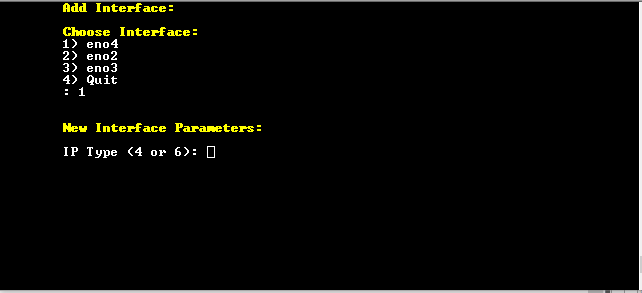
From the Ethernet Interfaces menu, choose option 1; a list of currently available interfaces (not yet configured) is displayed. |
Add Interface
|
2.
|
Enter the number of the IP interface that you wish to modify (on HP machines the interfaces are called 'eno1', 'eno2', etc) and then press Enter. |
|
3.
|
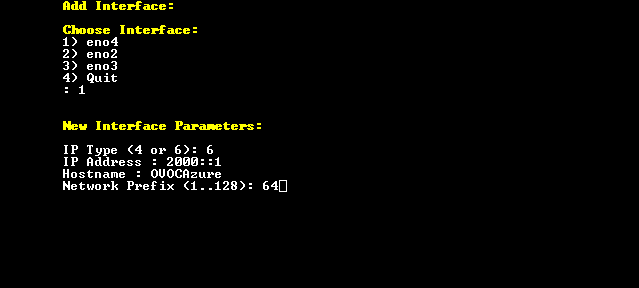
Choose the IP interface type and then press Enter: |
Add Interface
|
4.
|
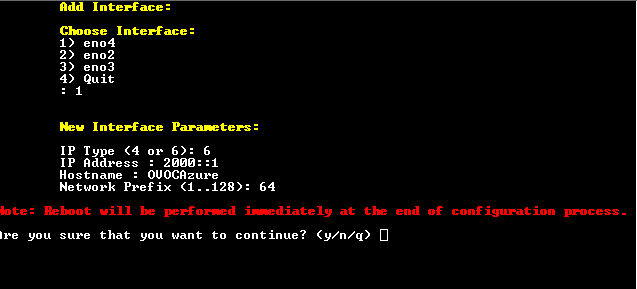
Enter the IP Address, Hostname and Network Prefix and confirm;. the new interface parameters are displayed. |
Confirm Update
|
5.
|
Type y to confirm the changes; the OVOC server automatically reboots for the changes to take effect. |